Showing posts with label 2g. Show all posts
Showing posts with label 2g. Show all posts
Wednesday, October 9, 2013
Apple TV 2G Update Released With Support For Purchasing TV Episodes
It seems like earlier today, Apple has quietly pushed out an Apple TV 2G update that now brings support for purchasing TV episodes via the Apple TV itself.


John Gruber from Daring Fireball explains:
I just ran software update on my Apple TV 2 and got a new update that adds support for a major new feature: purchased TV shows. You can buy - not just rent but buy - new episodes directly from your Apple TV, and access and stream any TV show episodes youve previously purchased using your iTunes account.
Previously, it was not possible for you to purchase TV episodes via the Apple TV 2G. Not only this, the update also adds support for Vimeo video content and the YouTube playlist feature. Apart from this, Apple has also added Purchased tab under the TV section in iTunes for both Windows and Mac allowing you to free re-download content that you have already paid for.
This brings the Apple TV 2G iOS version up to iOS 4.3 with a build number of 8F455. Initial reports are suggesting that this Purchased feature is currently available in the U.S. as of now. Earlier today, we also reported that Apple may release 3 HDTVs by March 2012.
This brings the Apple TV 2G iOS version up to iOS 4.3 with a build number of 8F455. Initial reports are suggesting that this Purchased feature is currently available in the U.S. as of now. Earlier today, we also reported that Apple may release 3 HDTVs by March 2012.
Below you can find the direct links to the AppleTV Firmware Files for every released firmware version.
1.0.0: OS-dot-DMG 1.0.dmg
1.1.0: 2Z694-5248-45.dmg
2.0.0: 2Z694-5274-109.dmg
2.0.1: 2Z694-5387-25.dmg
2.0.2: 2Z694-5428-3.dmg
2.1.0: 2Z694-5485-1.dmg
2.2.0: 2Z694-5499.dmg
2:3:0: 2Z694-5573-24.dmg
2.3.1: 2Z694-5587-18.dmg
2.4.0: 2Z694-5660-029.dmg
3.0.0: 2Z694-5789-067.dmg
3.0.1: 2Z694-6004-003.dmg
3.0.2: 2Z694-6013-013.dmg
4.1.0: AppleTV2,1_4.1_8M89_Restore.ipsw
4.2.0: AppleTV2,1_4.2_8C150_Restore.ipsw
4.2.1: AppleTV2,1_4.2.1_8C154_Restore.ipsw
4.3.0: AppleTV2,1_4.3_8F191m_Restore.ipsw
4.3.0 (Build 8F202): AppleTV2,1_4.3_8F202_Restore.ipsw
4.3.0 (Build 8F305): AppleTV2,1_4.3_8F305_Restore.ipsw
4.3.0 (Build 8F455): AppleTV2,1_4.3_8F455_Restore.ipsw
Bonus:
MacOS X 10.4.9 Combo Updater
1.0.0: OS-dot-DMG 1.0.dmg
1.1.0: 2Z694-5248-45.dmg
2.0.0: 2Z694-5274-109.dmg
2.0.1: 2Z694-5387-25.dmg
2.0.2: 2Z694-5428-3.dmg
2.1.0: 2Z694-5485-1.dmg
2.2.0: 2Z694-5499.dmg
2:3:0: 2Z694-5573-24.dmg
2.3.1: 2Z694-5587-18.dmg
2.4.0: 2Z694-5660-029.dmg
3.0.0: 2Z694-5789-067.dmg
3.0.1: 2Z694-6004-003.dmg
3.0.2: 2Z694-6013-013.dmg
4.1.0: AppleTV2,1_4.1_8M89_Restore.ipsw
4.2.0: AppleTV2,1_4.2_8C150_Restore.ipsw
4.2.1: AppleTV2,1_4.2.1_8C154_Restore.ipsw
4.3.0: AppleTV2,1_4.3_8F191m_Restore.ipsw
4.3.0 (Build 8F202): AppleTV2,1_4.3_8F202_Restore.ipsw
4.3.0 (Build 8F305): AppleTV2,1_4.3_8F305_Restore.ipsw
4.3.0 (Build 8F455): AppleTV2,1_4.3_8F455_Restore.ipsw
Bonus:
MacOS X 10.4.9 Combo Updater

Saturday, October 5, 2013
AppleTV How to Jailbreak Your Apple TV 2G Using Seas0nPass Windows 5 0 2
| ||||||||||




Tuesday, September 17, 2013
How to Jailbreak Your Apple TV 2G Using Seas0nPass Windows 5 2
Instructions on how to perform an untethered jailbreak of your second generation Apple TV using Seas0nPass for Windows.
*Before beginning this tutorial you must have already installed the Microsoft .Net Framework which can be found here.
Step One
Download the latest version of SeasonPass from here.
Step Two
Extract the archive you downloaded. Then double click the extracted application to launch it.

Step Three
Click the Create IPSW button from the main screen.

Step Four
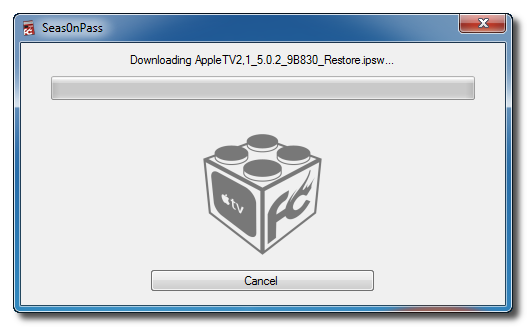
Seas0nPass will now download the latest Apple TV firmware file

Step Five
Seas0nPass will create a custom IPSW file for you.

Step Six
Once your custom IPSW file has been created, Seas0nPass will ask you to connect the Apple TV to your computer via a micro-USB cable and use the remote to put it into DFU mode by holding MENU and PLAY/PAUSE for 7 seconds. The power cable should be unplugged during this process. Tip: Connect the usb cable and press the buttons down at the exact same time.

Step Seven
Once your Apple TV has been detected in DFU mode, Seas0nPass will upload some files, ask you if its okay to automatically restore firmware, and then beginning restoring to the new firmware.


Step Ten
Thats it! Your Apple TV is jailbroken!

*Before beginning this tutorial you must have already installed the Microsoft .Net Framework which can be found here.
Step One
Download the latest version of SeasonPass from here.
Step Two
Extract the archive you downloaded. Then double click the extracted application to launch it.

Step Three
Click the Create IPSW button from the main screen.

Step Four
Seas0nPass will now download the latest Apple TV firmware file

Step Five
Seas0nPass will create a custom IPSW file for you.

Step Six
Once your custom IPSW file has been created, Seas0nPass will ask you to connect the Apple TV to your computer via a micro-USB cable and use the remote to put it into DFU mode by holding MENU and PLAY/PAUSE for 7 seconds. The power cable should be unplugged during this process. Tip: Connect the usb cable and press the buttons down at the exact same time.

Step Seven
Once your Apple TV has been detected in DFU mode, Seas0nPass will upload some files, ask you if its okay to automatically restore firmware, and then beginning restoring to the new firmware.


Step Ten
Thats it! Your Apple TV is jailbroken!

Subscribe to:
Posts (Atom)