Showing posts with label windows. Show all posts
Showing posts with label windows. Show all posts
Sunday, March 23, 2014
How to Create a Folder Without Name in Windows XP just for fun
Hey friends i am writing a trick to create a folder with no name in windows operating system. This is not a super high-tech trick but it just a short and simple for fun or to amaze your friends.
simply it is like change from
 TO

Lets make this trick some more interesting....
How if we make ur folder or file invisible with only name? With below steps, the file is invisible because we are not hiding it, we are just give it a transparent icon and a space at its name, but someone can select it if they know where it is in desktop or any folder.

If you want to make its name invisible too then repeat the first trick ( Press ALT+0160 ).
simply it is like change from
TO - Create a new folder in your specified directory.
- Now rename the folder or file by pressing F2 key or Right Click -> Rename.
- Now hold ALT button and press 0160 ( or 255).
- Hit Enter then you are successfully creating a folder without name in Windows XP.
Lets make this trick some more interesting....
How if we make ur folder or file invisible with only name? With below steps, the file is invisible because we are not hiding it, we are just give it a transparent icon and a space at its name, but someone can select it if they know where it is in desktop or any folder.
- Create a new folder in your specified directory.
- Right Click -> New -> Folder, and a new folder will be created in that directory.
- Customize the folder if you want to. Dont rename. Right Click the New Folder, go to Properties, then to Customize, and then click Change Icon. Here is the trick, go to the middle and you should see some blank spaces. Those are transparent icons, select one of those then press OK -> Apply -> OK.
You should have finished your new invisible file, Congratulations

If you want to make its name invisible too then repeat the first trick ( Press ALT+0160 ).

Monday, October 7, 2013
Microsoft to introduce Samsung Windows 8 tablet at BUILD

Microsoft is going to introduce the first ever Windows 8 tablet at its BUILD conference commencing on September 13, and Samsung will be one of the first manufacturers to build a slate for Microsofts new operating system.
Tablet will be ARM-powered and utilise a number of sensors which Windows 8 will actively support. It is possible that the devices given away at the event will be quad-core tablets.
To those of you who are eagerly awaiting a Windows 8 tablet, having Samsung on-board is surely great news. The company already produces two awesome Android tablets, which are some of the best available on Googles Android OS.
from: full-windows8
Sunday, October 6, 2013
How to Jailbreak Your iPad 1 Using RedSn0w Windows 5 0b4
These are instructions on how to jailbreak your iPad 1 on the 5.0b4 firmware using RedSn0w for Windows. Since iOS 5.0 has not yet been released these are instructions for developers only. This procedure will not hacktivate so you must have your UDID registered with a developer, and it is tethered.
If you want to jailbreak a lower firmware version you can find the appropriate tutorial here.
Step One
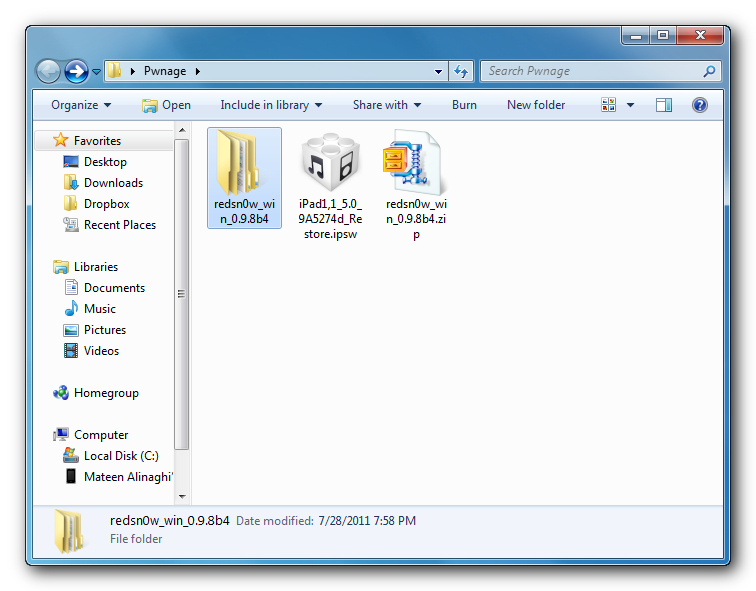
Create a folder on your desktop called Pwnage
Download RedSn0w from here and place it in the Pwnage folder. Likewise, download the latest 5.0 firmware from iOS Dev Center and place it in the same folder.
5.0b4 (iPad 1): iPad1,1_5.0_9A5274d_Restore
Extract the RedSn0w zip file into the same folder.
Step Two
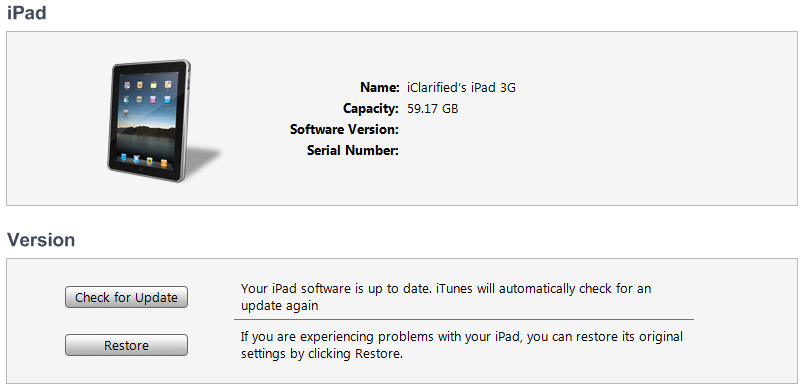
Connect your iPad to the computer and launch iTunes.
Select your iPad from the list of devices on the left. Now hold down Shift and click the Restore button. Restore is preferred as it wont create any wasted space on your iPad.
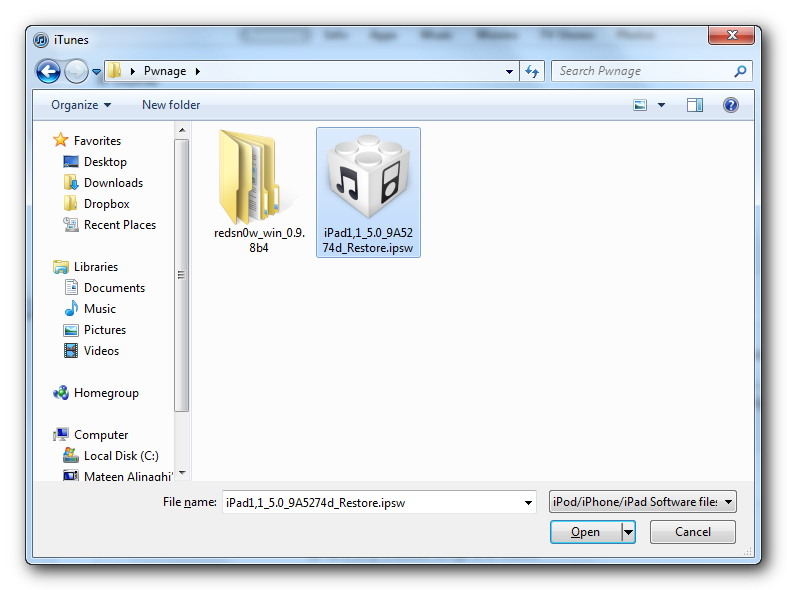
Navigate to the Pwnage folder on your desktop and select the 5.0 firmware ipsw. Click the Choose button to continue.
Step Three
Once iTunes has finished updating your iPad to the desired firmware open the Pwnage folder on your desktop and launch the redsn0w application from the redsn0w folder we extracted earlier.
**Windows 7 users may need to run RedSn0w in Vista Compatibility mode. You can do this by right clicking the executable and selecting Properties from the contextual menu.
Step Four
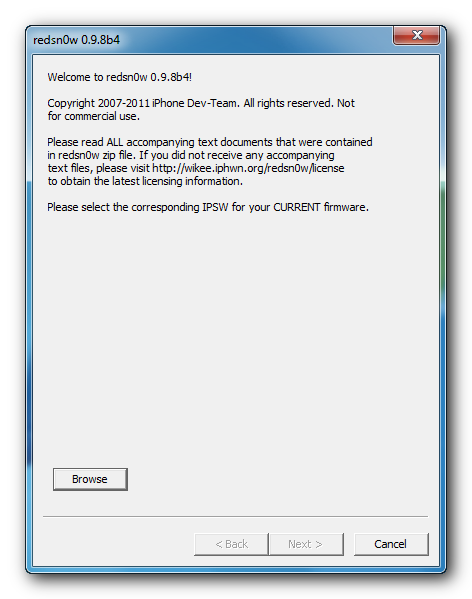
Once RedSn0w opens click the Browse button
Step Five
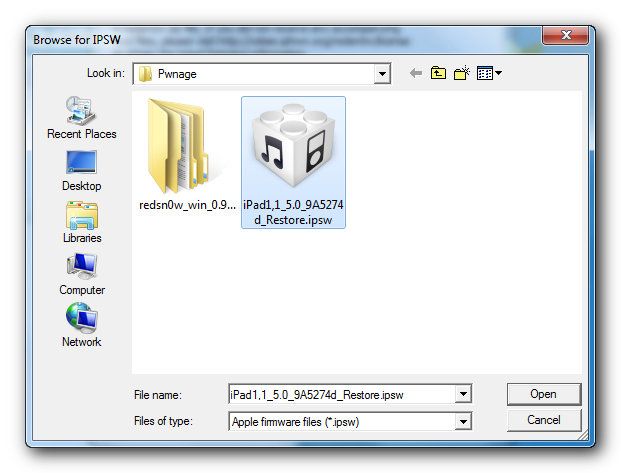
Select the 5.0 firmware ipsw we placed in the Pwnage folder on our desktop then click Open.
Step Six
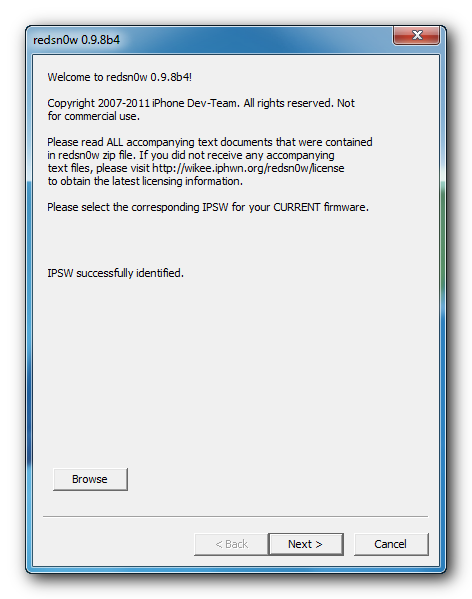
Once the firmware has been verified click the Next button to continue.
Step Seven
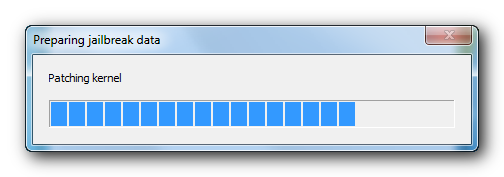
RedSn0w will now prepare the jailbreak data
Step Eight
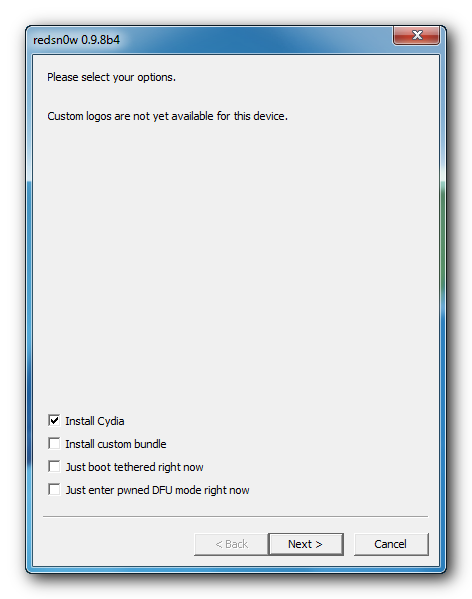
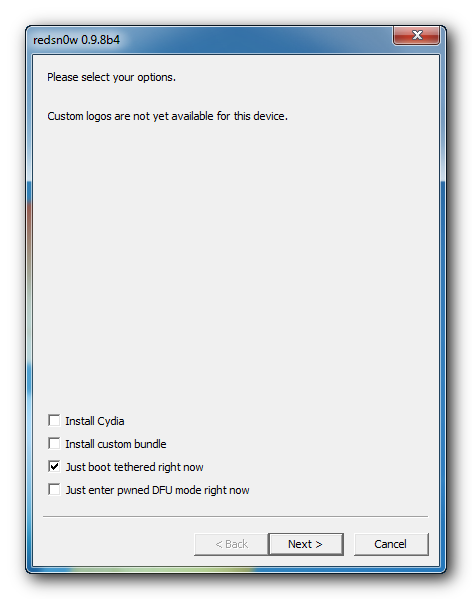
From this window you can select the jailbreak options you would like. Make sure Cydia is selected and click the Next button to continue.
Step Nine
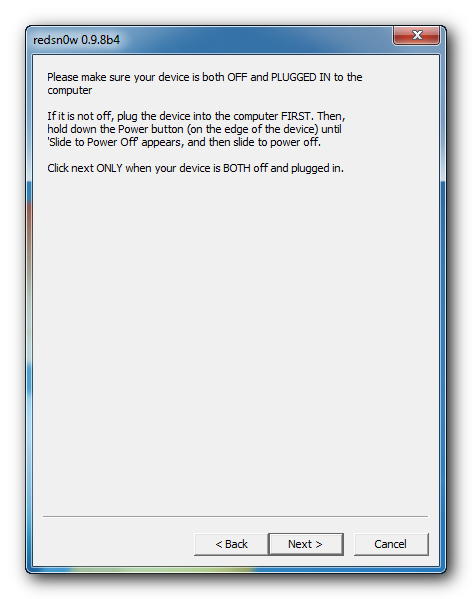
Please plug your iPad into the computer and make sure its OFF then click the Next button
Step Ten
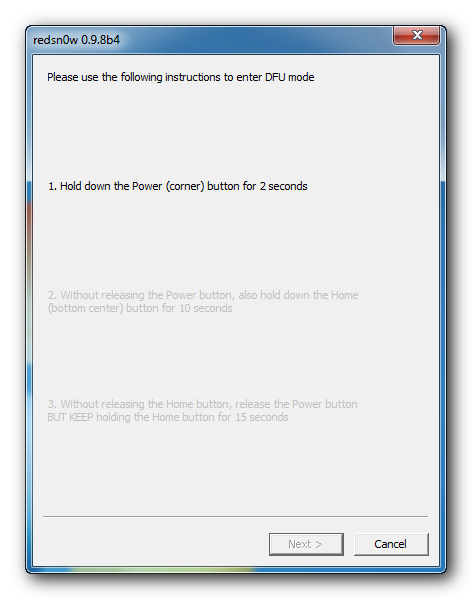
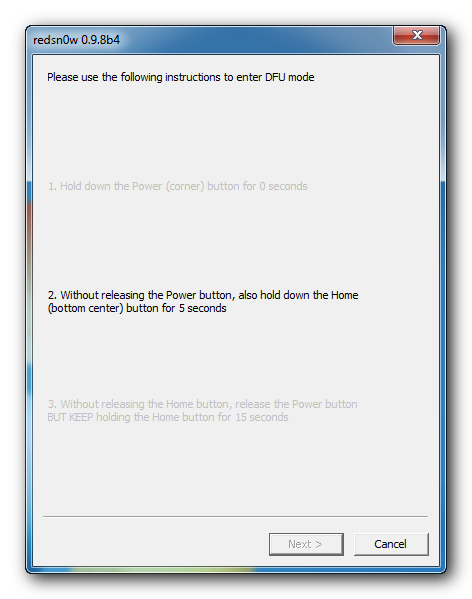
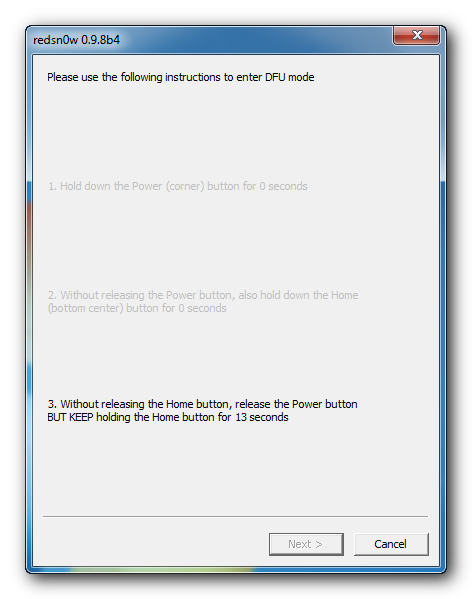
RedSn0w will now guide you through the steps to get into DFU mode. You can find more help with DFU mode here
Hold down both the Home button and the Power button for 10 seconds.
Release the Power button and continue holding the Home button until RedSn0w detects the device.
Step Eleven
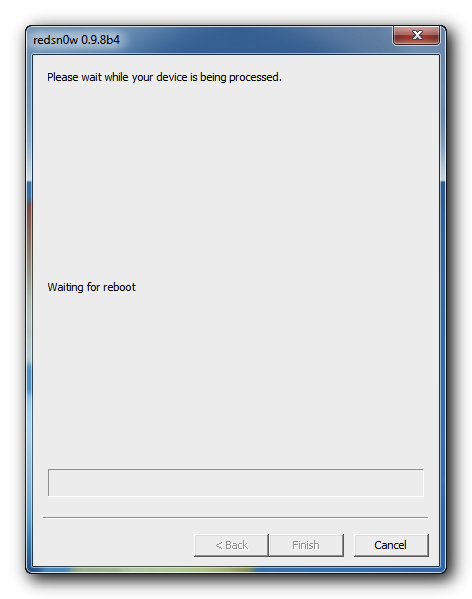
Your iPad will now reboot
Step Twelve
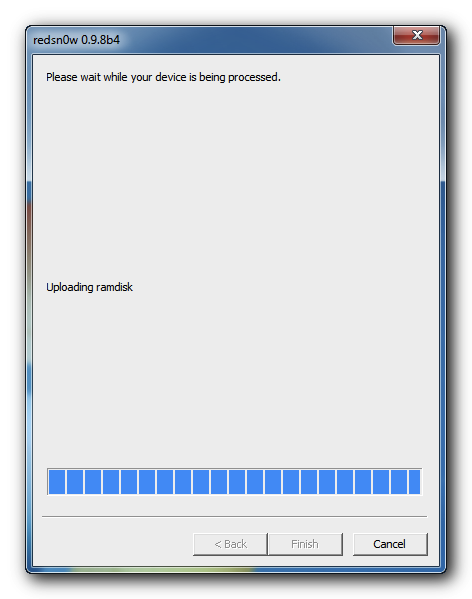
RedSn0w will then begin uploading the new RAM Disk and Kernel.
Step Thirteen
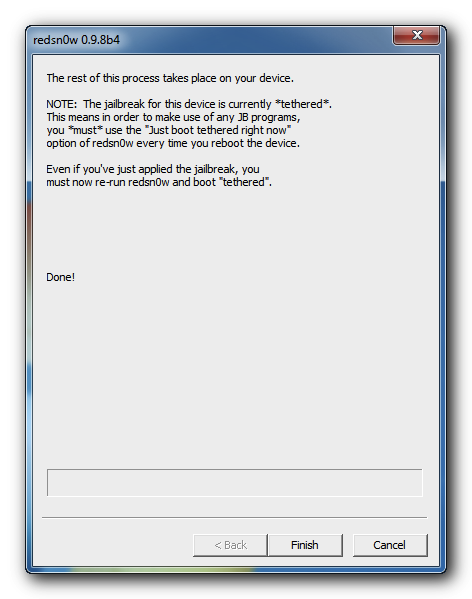
Once this is complete you will be notified that RedSn0w is done. Click the Finish button. When your iPad finishes rebooting (5 minutes or so) it will be jailbroken with Cydia on the SpringBoard.
BOOT TETHERED:
Since this is a tethered jailbreak you must use Redsn0w to help you boot back into your jailbroken device if its powered off for any reason. Simply connect your iPad to the computer, launch RedSn0w, select Just boot tethered right now from the options window and click Next to have RedSn0w boot your device.
*As usual a big thanks to the iPhone Dev-Team and Geohot for their hard work and contribution to the iPhone community.
**Windows 7 users can try running RedSn0w as an administrator in Windows Vista or XP compatibility mode if you experience any difficulties.


Saturday, October 5, 2013
AppleTV How to Jailbreak Your Apple TV 2G Using Seas0nPass Windows 5 0 2
| ||||||||||


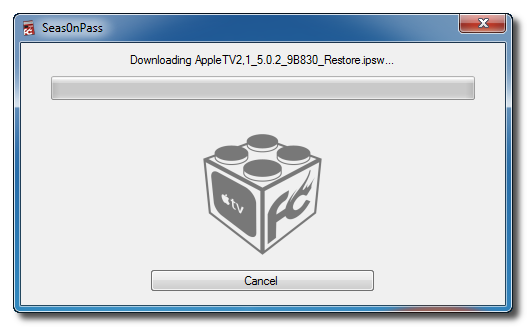


Sunday, September 22, 2013
Routines are Important For Owners of PC Computer Windows

Routines are Important For Owners of PC / Computer / Windows - As we know, now that many computer users / netbook / PC (Personal Computer) which is thought to perform both routine maintenance of software and hardware used in the computer. Maybe, because most users dont know and dont understand the problem of "maintenance" but this is very important.
Here are some activities that should be done routinely for the owners of PC / netbook / computer.
Cleaning Hardware
For owners of desktop computers, the CPU casing where a variety of attached hardware should always be treated. Depending on the placement of the casing, after a while,usually in it will be full of dust, because the fan is running it will also bring into the dust.
Every few months or once a year in the Casing condition should always be checked, if it is full of dust should be cleaned immediately. If able to remove all components and return one by one, would be better. If not, simply brought into the open and cleaned with a brush.

If the compressor is available, it will be easier to clean the components therein. Cleaning is very important especially if the processor fan or other fan has been filled with dirt, so airflow is not good anymore.
Software to check the temperature of computer components also need to be a collection so that any time we can monitor the temperature of various components. Can use the software built motherbard or other free software such as Speedfan, Hardware Monitor, and others.
Care System (Software)
For the maintenance of computer systems (software), there are a variety of routines that should be done to keep the computer still work with a good performance. including the following:
- Antivirus updates, if your computer using antivirus, Routines to update. Because no update antivirus will not work effectively
- Windows Update, for users Original windows should always routinely update either manually or automatically.
- Scan Computer with Antivirus, although it is installed antivirus, full scan should be done regularly, to ensure your computer free of malware / virus.
- Clean up unused files, the longer, usually the number of files on the computer more and more and some may not be used anymore. Routines to inspect and remove unused files. Can also use software such as CCleaner, Glary Utilities, Advanced System Care and the other (be sure to check first for any settings to be removed before using the software like it)
- Routine backups of important data, when the computer is full of important data such as tasks, reports, thesis or other data, do not forget to do backups. Most easily by doing all your important data with compression or software compression program such as 7zip, WinZip, Winrar and the like. Furthermore, the data backup media can put in a good terpisan external HDD, CD ROM, DVD ROM or stored online in the "Cloud Service" such as DropBox, Box.net and others safe as long as ascertained in advance (can be encrypted, password-zip)
- Check the program is running with System / Windows, to do this can use software such as Autoruns or System Explorer. If you see any non-essential applications running with the windows should be deactivated in order to better computer performance.
- Defragment the hard disk, when it was too long, need to routinely defragmenter your hard disk (but not too often). Check first whether the need to defragment your hard disk.Can use the default Windows program (from the Accessories menu> System Tools> Disk Defragmenter) or make use of third-party software such as Defraggler or MyDefrag.
A variety of the above matters may be a routine activity that can be done each user PC / Computer. And each user may also perform other routines according to their individual needs. If there are entries, additions or suggestions, please add through the comments, may be useful.
Saturday, September 21, 2013
iTunes for Windows iTunes cannot contact the iPhone iPad or iPod software update server
Products Affected
Windows, iPad, iPhone, iPod, iTunesSymptoms
You may see one of the following alert messages when trying to update or restore an iPhone, iPad, or iPod in iTunes 7 or later.iPhone:
"iTunes could not contact the iPhone software update server because you are not connected to the Internet. Make sure your Internet connection is active and try again."
iPad:"iTunes could not contact the iPad software update server because you are not connected to the Internet. Make sure your Internet connection is active and try again."
iPod:"iTunes could not contact the iPod software update server because you are not connected to the Internet. Make sure your Internet connection is active and try again."
Internet access is required to download iPhone, iPad, or iPod software updates. However, if you are able to connect to the Internet with your preferred web browser and you can access the iTunes Store, see the solution below to resolve this issue.Resolution
Windows XP
- From the Start menu, choose Control Panel.
- Open the Internet Options control panel.
- Click the Connections tab.
- Click the LAN Settings button.
- Select the "Automatically detect settings" checkbox.
- Click OK in both windows.
- Reopen iTunes and connect your iPhone, iPad, or iPod.
- Update or restore your device.

Windows Vista and Windows 7
- From the Start menu, choose Control Panel.
- Select Network and Internet and select Internet Options. Or in Classic View, open the Internet Options control panel.
- Click the Connections tab.
- Click the LAN Settings button.
- Select the "Automatically detect settings" checkbox.
- Click OK in both windows.
- Reopen iTunes and connect your iPhone, iPad, or iPod.
- Update or restore your device.

Additional Information
The “hosts” file may also be blocking gs.apple.com.- Select the hosts file (normally you can find your hosts file at C:WINDOWSSYSTEM32DRIVERSETC).
- Click the Edit menu, and choose Copy.
- Then, click the Edit menu again, and choose Paste. There should now be a duplicate of the hosts file named "Copy of hosts" (Windows XP) or "hosts -Copy" (Windows Vista/7).
- Drag the original hosts file to your desktop. If Windows needs your permission to continue, click Continue.
- Drag the "Copy of hosts" (Windows XP) or "hosts -Copy" (Windows Vista/7) to the desktop.
- Right-click "Copy of hosts" (Windows XP) or "hosts -Copy" (Windows Vista/7) and choose Open. You may be prompted to choose the program you want to use to open this file. Double-click Notepad.
- When Notepad opens, click the Edit menu and choose Select All. Then from the Edit menu, choose Delete.
- From the File menu, choose Save. Close Notepad.
- Drag the "Copy of hosts" (Windows XP) or "hosts -Copy" (Windows Vista/7) file from your desktop back into the original location. If Windows needs your permission to continue, click Continue.
- Right-click the "Copy of hosts" (Windows XP) or "hosts -Copy" (Windows Vista/7) file, and choose Rename. Type "hosts" (without quotation marks) and press Enter.
- Restart your computer and try connecting to the software update server.
Important: Information about products not manufactured by Apple is provided for information purposes only and does not constitute Apple’s recommendation or endorsement. Please contact the vendor for additional information.
How to Jailbreak iOS 4 3 2 Redsn0w 0 9 6rc14 iPhone iPod Touch iPad Windows Mac
Dev team has just released new version of Redsn0w 0.9.6rc14 to bring untethered jailbreak for iOS 4.3.2 on iPhone 4, iPhone 3GS, iPod touch 4G, iPod touch 3G and iPad. iOS 4.3.2 untethered jailbreak is based on i0n1cs untethered exploit.
Heres step by step guide showing you how to jailbreak iOS 4.3.2 untethered using Redsn0w 0.9.6 for Windows
Step 1: Download iOS 4.3.2 for iPhone, iPad or iPod touch (download links at the end).
Step 2: Restore to iOS 4.3.2 in case you havent yet using the IPSW file you just downloaded via iTunes 10.2.2.
Step 3: Start Redsn0w and point it to the official iOS 4.3.2 firmware file.
Step 4: Now select “Install Cydia” and click “Next”. Optionally (if available), you can also select any other option you like.
Step 5: Now make sure your device is both OFF and PLUGGED IN to the computer before you click “Next”.
At this stage you will be presented with a screen where you will be guided on how to enter DFU mode. Quickly hold “Power” button and then while holding the “Power” button, you will now have to hold “Home” button too. Now after few seconds release “Power” button but keep holding “Home” button until installation begins.
Step 6: Wait until you get untethered iOS 4.3.2 jailbroken in few minutes.
Download Redsn0w 0.9.6rc14 for Windows
Download Redsn0w 0.9.6rc14 for Mac
FOR MAC Users
Heres step by step guide showing you how to jailbreak iOS 4.3.2 untethered using Redsn0w 0.9.6 for Mac
Step 1: Download iOS 4.3.2 for iPhone, iPad or iPod touch (download links are above).
Step 2: Restore to iOS 4.3.2 in case you havent yet using the IPSW file you just downloaded via iTunes 10.2.2.
Step 3: Start Redsn0w and point it to the official iOS 4.3.2 firmware file.
Step 4: Now select “Install Cydia” and click “Next”. Optionally (if available), you can also select any other option you like.
Step 5: Now make sure your device is both OFF and PLUGGED IN to the computer before you click “Next”.
At this stage you will be presented with a screen where you will be guided on how to enter DFU mode. Quickly hold “Power” button and then while holding the “Power” button, you will now have to hold “Home” button too. Now after few seconds release “Power” button but keep holding “Home” button until installation begins.
Step 6: Wait until you get untethered iOS 4.3.2 jailbroken in few minutes.
Read More..
Heres step by step guide showing you how to jailbreak iOS 4.3.2 untethered using Redsn0w 0.9.6 for Windows
Step 1: Download iOS 4.3.2 for iPhone, iPad or iPod touch (download links at the end).
Step 2: Restore to iOS 4.3.2 in case you havent yet using the IPSW file you just downloaded via iTunes 10.2.2.
Step 3: Start Redsn0w and point it to the official iOS 4.3.2 firmware file.
Step 4: Now select “Install Cydia” and click “Next”. Optionally (if available), you can also select any other option you like.
Step 5: Now make sure your device is both OFF and PLUGGED IN to the computer before you click “Next”.
At this stage you will be presented with a screen where you will be guided on how to enter DFU mode. Quickly hold “Power” button and then while holding the “Power” button, you will now have to hold “Home” button too. Now after few seconds release “Power” button but keep holding “Home” button until installation begins.
Step 6: Wait until you get untethered iOS 4.3.2 jailbroken in few minutes.
Download Redsn0w 0.9.6rc14 for Windows
Download Redsn0w 0.9.6rc14 for Mac
FOR MAC Users
Heres step by step guide showing you how to jailbreak iOS 4.3.2 untethered using Redsn0w 0.9.6 for Mac
Step 1: Download iOS 4.3.2 for iPhone, iPad or iPod touch (download links are above).
Step 2: Restore to iOS 4.3.2 in case you havent yet using the IPSW file you just downloaded via iTunes 10.2.2.
Step 3: Start Redsn0w and point it to the official iOS 4.3.2 firmware file.
Step 4: Now select “Install Cydia” and click “Next”. Optionally (if available), you can also select any other option you like.
Step 5: Now make sure your device is both OFF and PLUGGED IN to the computer before you click “Next”.
At this stage you will be presented with a screen where you will be guided on how to enter DFU mode. Quickly hold “Power” button and then while holding the “Power” button, you will now have to hold “Home” button too. Now after few seconds release “Power” button but keep holding “Home” button until installation begins.
Step 6: Wait until you get untethered iOS 4.3.2 jailbroken in few minutes.
Subscribe to:
Posts (Atom)