Showing posts with label a. Show all posts
Showing posts with label a. Show all posts
Monday, March 24, 2014
Reflections How to Show a Documents Reading Level in Word!
Before I write up todays technology Tuesday post, I want to take a moment to reflect on life in general. As many of you know, I lost my Grandma Vicky less than two weeks ago. I spent a lot of time reflecting on our time together and I can truly say that I was fortunate to have such a loving grandmother who was and is such an important part of my life.
I truly miss her more than words can say.

A week after finding out that my Grandma passed, I found out that my ex-boyfriend had passed as well. He was only 25. Though he and I grew apart and havent spoken for years, I truly wished only the best for him. He was my first "love" and he has always had a special place in my heart. As much as I was left speechless by my Grandmas death, I am having just as hard of a time finding the words to express my deepest sympathies and regrets for his death as well.
I truly believe that everything happens for a reason, but I can never find or explain the reasons why we have to lose the ones we love. It truly breaks your heart and makes you question the world. Ive honestly felt like nothing has been going right lately. As hard as it is, I keep reminding myself of something my mom told me once:

As hard as it is to cope with lose and to cope with change, I know I am fortunate for the relationships that I have had and that there are so many more who are going through worse. As hard as things are to cope with or manage, we somehow need to put one foot in front of the other and try to move on. To the same idea, I found this other quote on pinterest and I really like it:
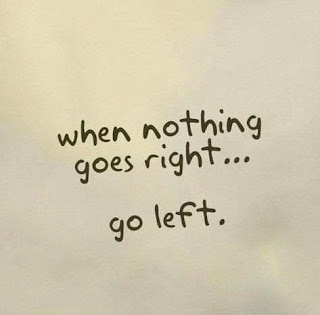
The past week and a half, I have spent a good amount of time crying and a lot of time reminiscing. Fortunately Im surrounded by supportive family, friends, neighbors, co-workers and followers who have put up with my distance and my ramblings. So for now, my rambling will cease for the time being and Ill put one foot in front of the other. Perhaps getting myself back on track with my blog and my life will help ease the pain.
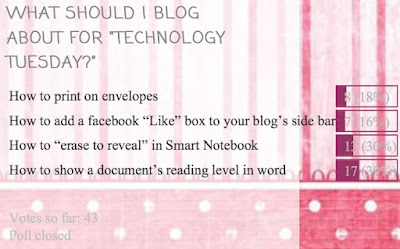
This two week long poll had a lot of votes, and the winner was the most recent addition to the poll... how to find out a Microsoft Word documents reading level. This tutorial is actually SUPER EASY!!!

Here are the official poll results...
And here is the incredibly easy tutorial!!!


As for next weeks poll, Ill be adding a blogger tutorial: how to host a linky party!
Read More..
I truly miss her more than words can say.
A week after finding out that my Grandma passed, I found out that my ex-boyfriend had passed as well. He was only 25. Though he and I grew apart and havent spoken for years, I truly wished only the best for him. He was my first "love" and he has always had a special place in my heart. As much as I was left speechless by my Grandmas death, I am having just as hard of a time finding the words to express my deepest sympathies and regrets for his death as well.
I truly believe that everything happens for a reason, but I can never find or explain the reasons why we have to lose the ones we love. It truly breaks your heart and makes you question the world. Ive honestly felt like nothing has been going right lately. As hard as it is, I keep reminding myself of something my mom told me once:
As hard as it is to cope with lose and to cope with change, I know I am fortunate for the relationships that I have had and that there are so many more who are going through worse. As hard as things are to cope with or manage, we somehow need to put one foot in front of the other and try to move on. To the same idea, I found this other quote on pinterest and I really like it:
The past week and a half, I have spent a good amount of time crying and a lot of time reminiscing. Fortunately Im surrounded by supportive family, friends, neighbors, co-workers and followers who have put up with my distance and my ramblings. So for now, my rambling will cease for the time being and Ill put one foot in front of the other. Perhaps getting myself back on track with my blog and my life will help ease the pain.
This two week long poll had a lot of votes, and the winner was the most recent addition to the poll... how to find out a Microsoft Word documents reading level. This tutorial is actually SUPER EASY!!!
Here are the official poll results...
And here is the incredibly easy tutorial!!!
You can download this tutorial as a PDF by clicking this picture!
Note: This tutorial is hosted on Google Docs. To save it from there, just open the file and click File > Download to save onto your computer!
As for next weeks poll, Ill be adding a blogger tutorial: how to host a linky party!

Race Car Centers for Common Core a Freebie!
Back in April I started to make these adorable race car centers for the common core standards but I never finished them! So today I made it my goal to finish them... and I did!
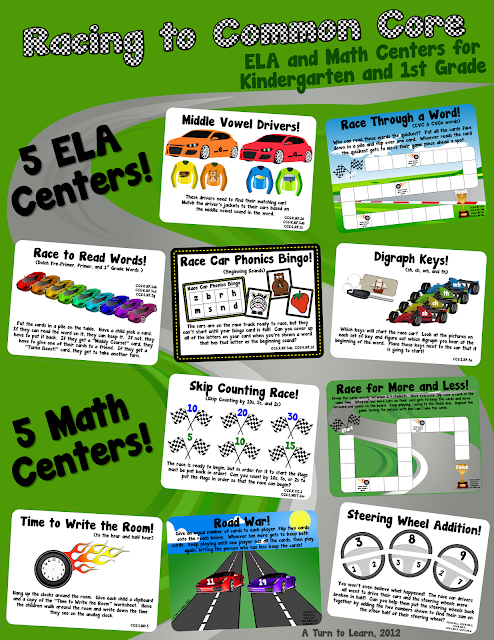
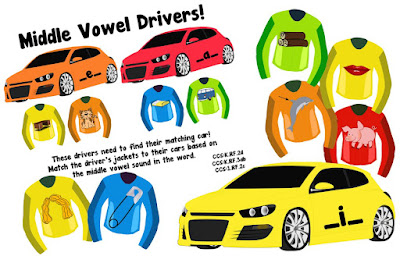
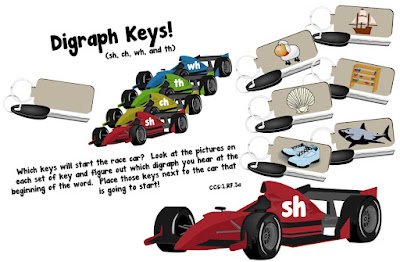
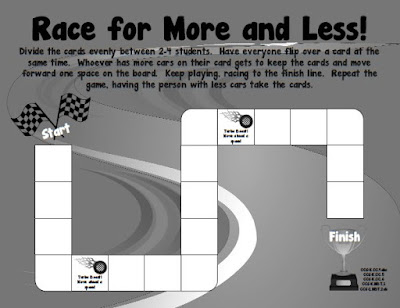
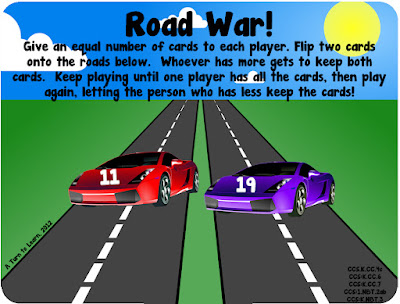
Now, of course, heres a freebie for my followers... one of the games from the set!!! Click the picture below to download the game in color and black and white!
Note: This freebie is hosted on Google Docs. Once you open the file, click File > Download to save onto your computer! 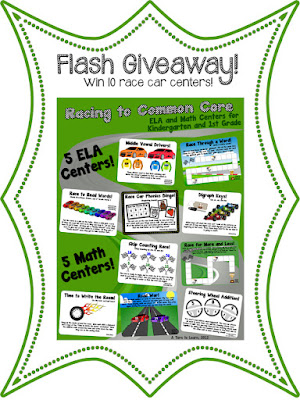
And lets do a quick flash giveaway! Can you guess which book I just started to read that I am loving? Ill give you one hint: its not a teaching book!
The first two people to get it right will win the whole set! Be sure to leave your email address!
Thanks to everyone who entered! The book(s) Im currently reading is the Hunger Games Trilogy! I finished the first one in two days and Im on the second one now. I was so nervous that theyd be gory but theyre not at all!
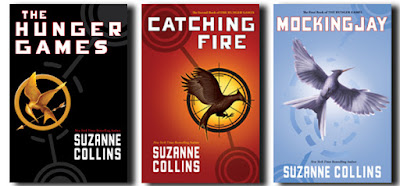
Congrats to Tanya at First Grade is Fantabulous! and Deneise McGowan for being the first two people to guess correctly! Ill be sending you the file soon!
Read More..
There are five ELA centers:
- Phonics Bingo (Beginning Sounds) (CCS.K.RF.3ab, CCS:K.RF.1d)
- Middle Vowel Drivers (Middle Vowel Sounds in CVC words) (CCS:K.RF.2d, CCS:K.RF.3ab, CCS:1.RF.2c)
- Race Through a Word (Reading CVC & CVCe Words) (CCS:K.RF.2cd, CCS.K.RF.3ab, CCS:1.RF.2b, CCS:1.RF.3bc)
- Digraphs Keys (Beginning Digraphs sh, ch, wh, and th) (CCS:1.RF.3a)
- Race to Read Words (Pre-Primer, Primer, and 1st Grade Dolch Words) (CCS:K.RF.1ab CCS:K.RF.3cd, CCS:1.RF.3g)
Math Centers:
- Race for More and Less (Comparing groups of objects to 20) (CCS:K.CC.4abc CCS:K.CC.5, CCS:K.CC.6, CCS:K.NBT.1 CCS:1.NBT.2ab)
- Road War (More and Less Using Numbers) (CCS.K.CC.4c, CCS:K.CC.6, CCS:K.CC.7, CCS:1.NBT.2ab, CCS:K.NBT.3
All the centers are available in color and black and white! :)
- Skip Counting Race (Skip Counting by 10s, 5s, and 2s) (CCS:K.CC.1, CCS.1.NBT.2ac)
- Time to Write the Room! (Time to the Hour and Half Hour) (CCS:1.MD.3)
- Steering Wheel Addition (Adding Numbers to 20) (CCS:K.OA.1, CCS:K.OA.2, CCS:K.OA.5, CCS:1.OA.5, CCS:1.OA.6)
Now, of course, heres a freebie for my followers... one of the games from the set!!! Click the picture below to download the game in color and black and white!
Sunday, March 23, 2014
How to Create a Folder Without Name in Windows XP just for fun
Hey friends i am writing a trick to create a folder with no name in windows operating system. This is not a super high-tech trick but it just a short and simple for fun or to amaze your friends.
simply it is like change from
 TO
TO 
Lets make this trick some more interesting....
How if we make ur folder or file invisible with only name? With below steps, the file is invisible because we are not hiding it, we are just give it a transparent icon and a space at its name, but someone can select it if they know where it is in desktop or any folder.

If you want to make its name invisible too then repeat the first trick ( Press ALT+0160 ).
simply it is like change from
TO - Create a new folder in your specified directory.
- Now rename the folder or file by pressing F2 key or Right Click -> Rename.
- Now hold ALT button and press 0160 ( or 255).
- Hit Enter then you are successfully creating a folder without name in Windows XP.
Lets make this trick some more interesting....
How if we make ur folder or file invisible with only name? With below steps, the file is invisible because we are not hiding it, we are just give it a transparent icon and a space at its name, but someone can select it if they know where it is in desktop or any folder.
- Create a new folder in your specified directory.
- Right Click -> New -> Folder, and a new folder will be created in that directory.
- Customize the folder if you want to. Dont rename. Right Click the New Folder, go to Properties, then to Customize, and then click Change Icon. Here is the trick, go to the middle and you should see some blank spaces. Those are transparent icons, select one of those then press OK -> Apply -> OK.
You should have finished your new invisible file, Congratulations

If you want to make its name invisible too then repeat the first trick ( Press ALT+0160 ).
Saturday, March 22, 2014
How to Print Anything at a Smaller Size!
I absolutely love this little trick! Im not even joking when I say I use it at least three times a week! Every time I make/buy a new center game, I use this trick to print the cover page smaller so that it will fit in a quart size ziploc bag. And... I use it to make visuals slightly smaller so that they fit better on my walls! It is definitely one of my favorite tricks!
So... time to show you how to print anything at a smaller size!

Before I go into the poll and the tutorial, do you see the ADORABLE product in my preview? Well... its fabulous and its free from The Primary Gal! Shes relatively new to blogging and TPT so head over there and give her some love!
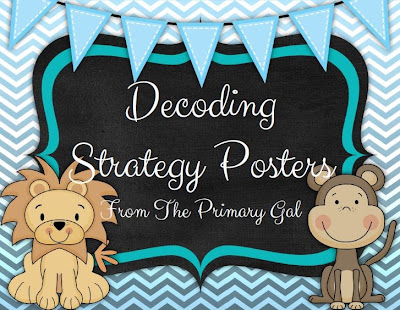
Now, for the poll! This was clearly the winner but the other options were definitely contenders!
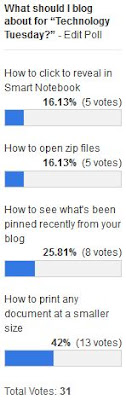
And of course, heres the tutorial! Step 1 mentions that its easiest to do this with a PDF, so if youre not sure how to make a PDF, be sure to check out my previous tutorial below!

The steps are slightly different on Mac and PC so I did two separate write ups!


As for next weeks poll, Im going to add how to make a customized search so that it only searches specific websites... this is perfect for research projects!
Read More..
So... time to show you how to print anything at a smaller size!
Before I go into the poll and the tutorial, do you see the ADORABLE product in my preview? Well... its fabulous and its free from The Primary Gal! Shes relatively new to blogging and TPT so head over there and give her some love!
Now, for the poll! This was clearly the winner but the other options were definitely contenders!
And of course, heres the tutorial! Step 1 mentions that its easiest to do this with a PDF, so if youre not sure how to make a PDF, be sure to check out my previous tutorial below!
The steps are slightly different on Mac and PC so I did two separate write ups!
You can download this tutorial as a PDF by clicking this picture!
Note: This tutorial is hosted on Google Drive. To save it from there, just open the file and click File > Download to save onto your computer!
As for next weeks poll, Im going to add how to make a customized search so that it only searches specific websites... this is perfect for research projects!
Sunday, March 16, 2014
How to Make a Frame in PowerPoint
Are you looking for a way to make your TPT cover page more colorful? Or to make a bright visual for your classroom? Well... its much easier than you might think! For this weeks Technology Tuesday (and I say Tuesday loosely as its almost midnight... eek!), the winner was how to make your own frame in powerpoint!

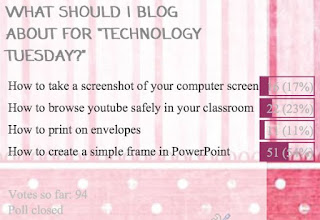


And of course, heres the frame that I made as a freebie!
To save the files, just click the image to get to the higher quality picture, then right click (or Mac: Ctrl + Click) to save the image onto your computer!

Next week, Im going to add how to make a collage of words in any shape you want!

Read More..
This item won the poll by a large margin, but it does seem that some of the other options are becoming strong competitors! I cant wait to see what happens on next weeks poll!
Now, without further adieu...
You can download this tutorial as a PDF by clicking this picture!
Note: This tutorial is hosted on Google Docs. To save it from there, just open the file and click File > Download to save onto your computer!
And of course, heres the frame that I made as a freebie!
To save the files, just click the image to get to the higher quality picture, then right click (or Mac: Ctrl + Click) to save the image onto your computer!
Next week, Im going to add how to make a collage of words in any shape you want!
Saturday, March 15, 2014
What Did They Say Wednesday! A Linky Party!
One of the best parts of being a teacher is getting to hear all of the hysterical things that kids say!
This weeks story is a reminder that you have to always be careful what you say!
In drawing a picture of myself, I drew flats on my feet. The kids had asked me why I didnt draw high heels for myself. I said "I usually wear flats so thats what Im going to draw. Maybe two days later, I wore a pair of heels to work. One of my girls comes up to me at the beginning of the day and says "You lied to us." Im shocked... since it was first thing in the morning and I had barely said anything. I say "What?" not having any idea what she was talking about. She obviously reminded me about the picture I drew of myself the other day (which i had totally forgotten about!) Go figure! I had to explain that "usually" doesnt mean "always!"
Rules for the Linky Party:
);
Read More..
<div align="center"><a href="http://blogspot.com/2013/01/whatdidtheysay1-23.html" title="What Did They Say!?"><img src="http://4.bp.blogspot.com/-OIhmtxluCS0/ULwEfazkl1I/AAAAAAAADpM/MMMzxm23B0Y/s320/What+Did+They+Say+Wednesday.png" alt="What Did They Say!?" style="border:none;" /></a></div>
This weeks story is a reminder that you have to always be careful what you say!
In drawing a picture of myself, I drew flats on my feet. The kids had asked me why I didnt draw high heels for myself. I said "I usually wear flats so thats what Im going to draw. Maybe two days later, I wore a pair of heels to work. One of my girls comes up to me at the beginning of the day and says "You lied to us." Im shocked... since it was first thing in the morning and I had barely said anything. I say "What?" not having any idea what she was talking about. She obviously reminded me about the picture I drew of myself the other day (which i had totally forgotten about!) Go figure! I had to explain that "usually" doesnt mean "always!"
Now... its time to share your cute kids story from this week!
Rules for the Linky Party:
- Share a story that one of your kids said on your blog! If you dont have a blog, leave a comment with your story!
- Use the HTML code at the top of this post to link back to the post!
- Comment on the two blog posts before yours!
);
How to Embed a Video in Smart Notebook!
Its Tuesday again, and I am shockingly writing this post before the stroke of midnight! :) The winner of this weeks poll was how to embed a video in Smart Notebook!

Heres the poll for anyone interested!


Dont you just love when theyre short and sweet?
Note: This tutorial is hosted on Google Docs. To save it from there, just open the file and click File > Download to save onto your computer!
I do plan on adding some other Smart Notebook Tutorials in the future, but in the meantime I want to add a Microsoft Word/PowerPoint option... how to make any font into an outline!

Read More..
Heres the poll for anyone interested!
Now, onto the tutorial! If your video is not .flv, check out yesterdays tutorial to learn how to convert it!
Dont you just love when theyre short and sweet?
You can download this tutorial as a PDF by clicking this picture!
I do plan on adding some other Smart Notebook Tutorials in the future, but in the meantime I want to add a Microsoft Word/PowerPoint option... how to make any font into an outline!
Wednesday, March 12, 2014
How to Add a Poll to Your Blog
It looks like the bloggers took over the poll again... another blogging option won! This week, most people voted for how to add a poll to your blog!


Im going to write about two different ways to do this: one right in blogger (a little easier, but more unreliable) and my preferred method: Poll Daddy. Now... onto the tutorial!


Next week, Ill add another blogger tutorial: how to add a followers box to your blog. This really confused me when I first made my blog... and blogger has since changed their options so this might answer some of your questions about how to add it!
Read More..
Im going to write about two different ways to do this: one right in blogger (a little easier, but more unreliable) and my preferred method: Poll Daddy. Now... onto the tutorial!
You can download this tutorial as a PDF by clicking this picture!
Note: This tutorial is hosted on Google Drive. To save it from there, just open the file and click File > Download to save onto your computer!
Next week, Ill add another blogger tutorial: how to add a followers box to your blog. This really confused me when I first made my blog... and blogger has since changed their options so this might answer some of your questions about how to add it!
Subscribe to:
Posts (Atom)